

How should I set up my PS5 and display for GTA VI?
On PS5, select Game Mode on your LG (or supported TV/monitor), choose a supported HDR tone-mapping option, then run Adjust HDR. LG calls its game mode Game Optimizer. Other brands use different names. [1] [4]
Slide guide
Key takeaways
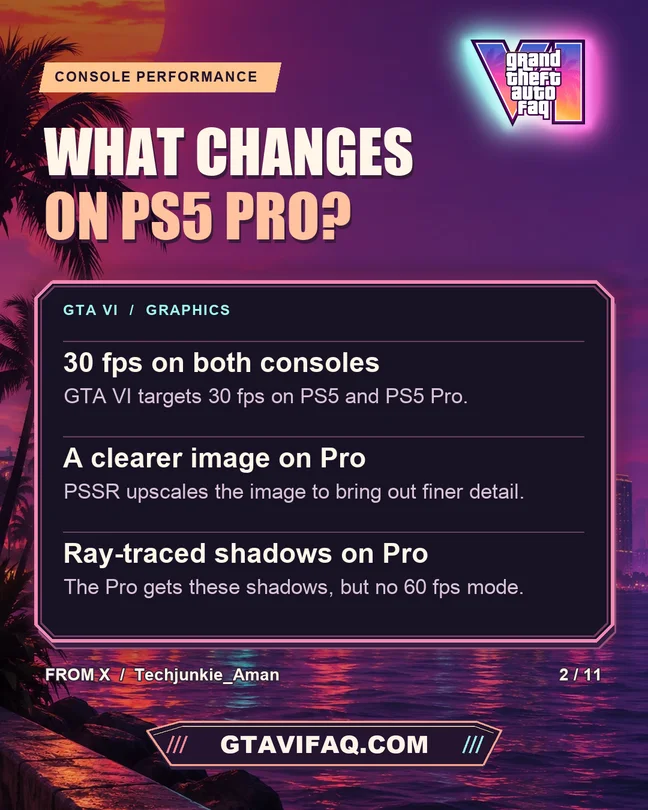
- 30 fps on both consoles. GTA VI targets 30 fps on PS5 and PS5 Pro. [1] [2] [3]
- A clearer image on Pro. PSSR upscales the image to bring out finer detail. [1] [2] [3]
- Ray-traced shadows on Pro. The Pro gets these shadows, but no 60 fps mode. [1] [2] [3]
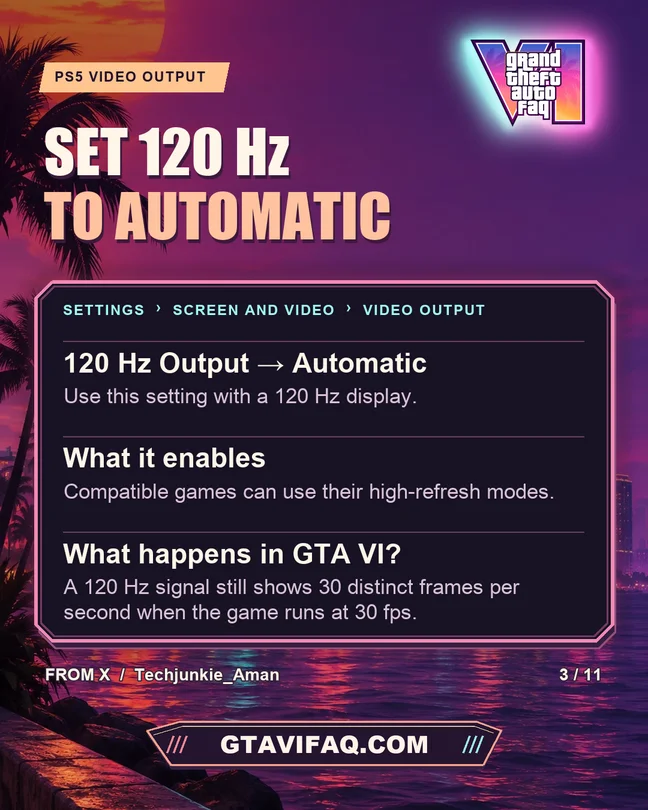
- 120 Hz Output → Automatic. Use this setting with a 120 Hz display. [1]
- What it enables. Compatible games can use their high-refresh modes. [1]
- What happens in GTA VI? A 120 Hz signal still shows 30 distinct frames per second when the game runs at 30 fps. [1]
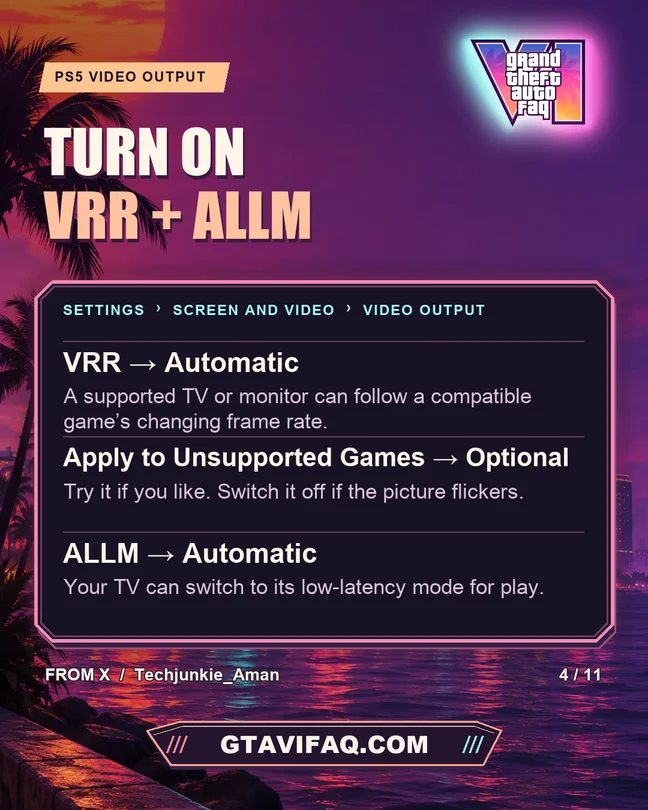
- VRR → Automatic. A supported TV or monitor can follow a compatible game’s changing frame rate. [1]
- Apply to Unsupported Games → Optional. Try it if you like. Switch it off if the picture flickers. [1]
- ALLM → Automatic. Your TV can switch to its low-latency mode for play. [1]
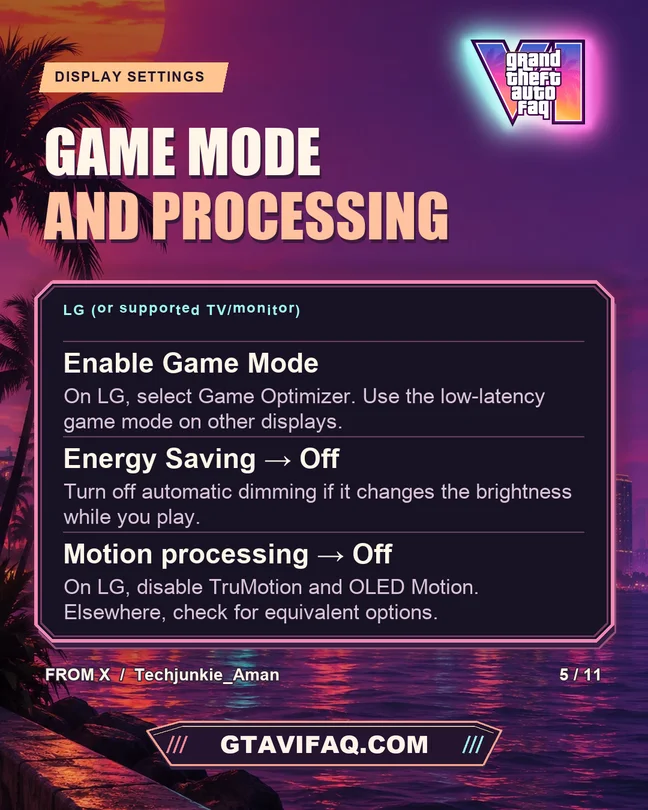
- Enable Game Mode. On LG, select Game Optimizer. Use the low-latency game mode on other displays. [1]
- Energy Saving → Off. Turn off automatic dimming if it changes the brightness while you play. [1]
- Motion processing → Off. On LG, disable TruMotion and OLED Motion. Elsewhere, check for equivalent options. [1]
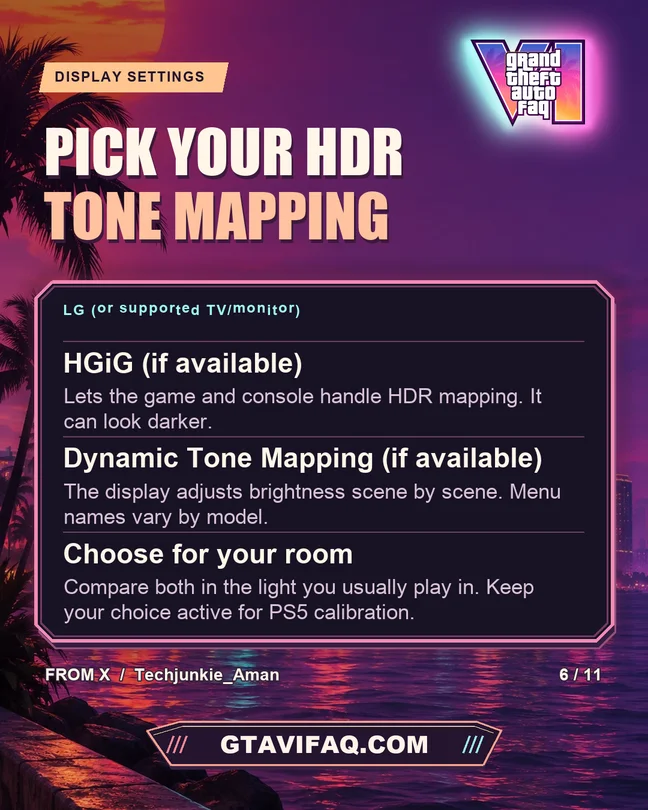
- HGiG (if available). Lets the game and console handle HDR mapping. It can look darker. [1]
- Dynamic Tone Mapping (if available). The display adjusts brightness scene by scene. Menu names vary by model. [1]
- Choose for your room. Compare both in the light you usually play in. Keep your choice active for PS5 calibration. [1]
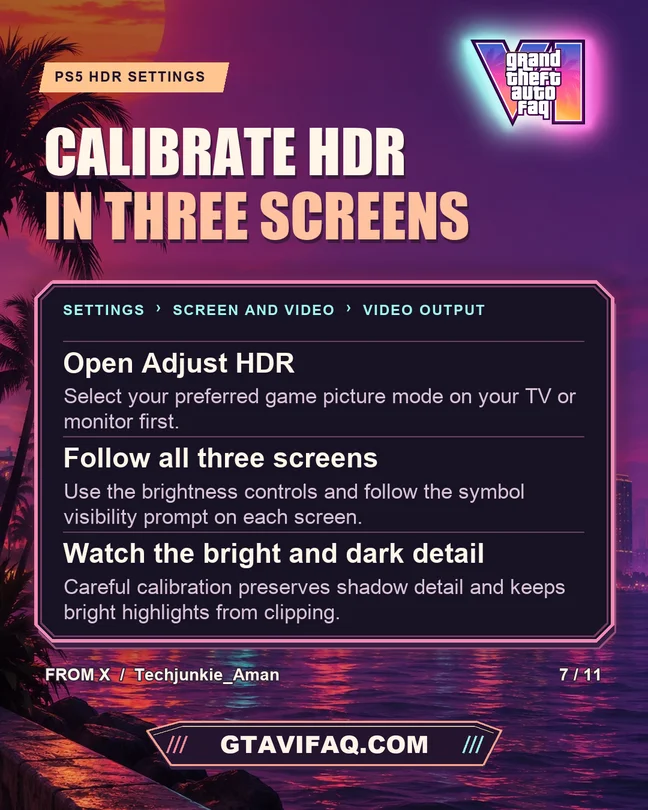
- Open Adjust HDR. Select your preferred game picture mode on your TV or monitor first. [1] [4]
- Follow all three screens. Use the brightness controls and follow the symbol visibility prompt on each screen. [1] [4]
- Watch the bright and dark detail. Careful calibration preserves shadow detail and keeps bright highlights from clipping. [1] [4]
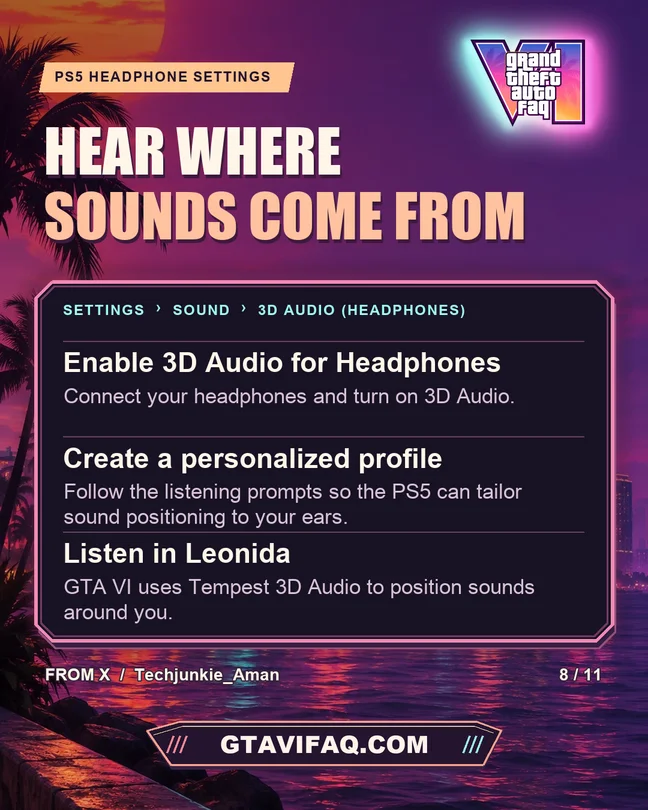
- Enable 3D Audio for Headphones. Connect your headphones and turn on 3D Audio. [1]
- Create a personalized profile. Follow the listening prompts so the PS5 can tailor sound positioning to your ears. [1]
- Listen in Leonida. GTA VI uses Tempest 3D Audio to position sounds around you. [1]
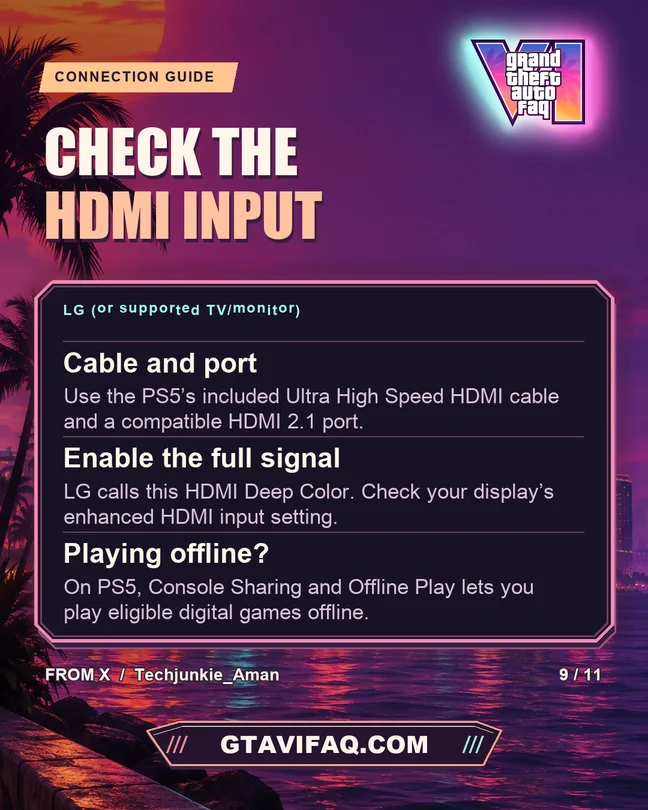
- Cable and port. Use the PS5’s included Ultra High Speed HDMI cable and a compatible HDMI 2.1 port. [5]
- Enable the full signal. LG calls this HDMI Deep Color. Check your display’s enhanced HDMI input setting. [5]
- Playing offline? On PS5, Console Sharing and Offline Play lets you play eligible digital games offline. [5]
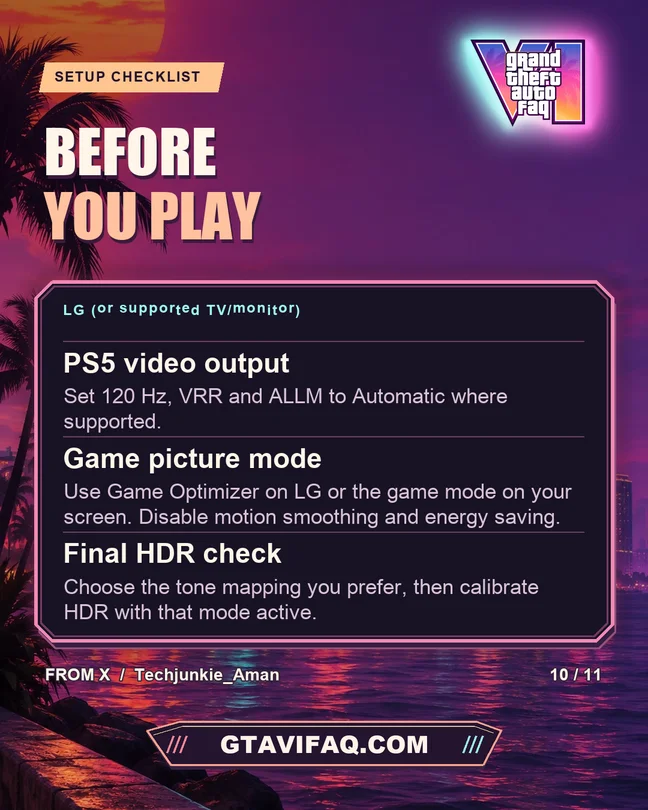
- PS5 video output. Set 120 Hz, VRR and ALLM to Automatic where supported. [6]
- Game picture mode. Use Game Optimizer on LG or the game mode on your screen. Disable motion smoothing and energy saving. [6]
- Final HDR check. Choose the tone mapping you prefer, then calibrate HDR with that mode active. [6]
Sources & verification
The TV adjustments are the author’s recommendations. PlayStation documents HDR calibration and Pro graphics, and GamesRadar+ reports the launch frame-rate target.
 Techjunkie_Aman on X
The author recommends automatic 120 Hz, VRR and ALLM on supported screens, describes LG Game Optimizer settings, and gives PS5 HDR and headphone setup steps.
Posted · Checked 2026-11-18 · 10:40 PM (22:40) UTC PlayStation Blog
The PS5 Pro paragraph names improved clarity through PSSR and ray-traced shadows. The publisher supplies a preview image in its article metadata at https://blog.playstation.com/tachyon/2048/11/f1fb77ba440f1402ae155dc56989230e7a24c2f8-scaled.jpg.
Posted · Checked 2026-11-18 · 6:42 AM (06:42) UTC GamesRadar+
Catherine Lewis attributes the console frame-rate cap to Rockstar’s preload announcement, explicitly includes PS5 Pro and says Rockstar did not announce a performance mode.
Posted · Checked 2026-11-18 · 8:07 AM (08:07) UTCPlayStation Support
PS5 HDR calibration is under Settings, Screen and Video, Video Output, Adjust HDR. Follow the on-screen instructions on an HDR-compatible display.
Post date unavailable · Checked 2026-11-18 · 10:40 PM (22:40) UTCTechjunkie_Aman on X
Part nine covers the HDMI cable and port, enhanced input settings or HDMI Deep Color, and Console Sharing and Offline Play.
Posted · Checked 2026-11-18 · 11:00 PM (23:00) UTCTechjunkie_Aman on X
Part ten recaps automatic video output settings, game mode, disabling extra processing and calibrating HDR. It also credits PlayStation, Rockstar and community HDR information.
Posted · Checked 2026-11-18 · 11:00 PM (23:00) UTCEdit history
First published
Corrected · Added the HDMI and offline-play checks from part nine and the final checklist from part ten. The cover and display steps now explicitly include compatible TVs and monitors alongside LG.
Related answers
 Settings and controlsDoes GTA VI have a first-person mode?Written by GTA VI FAQ · Source: GamesRadar+ · Posted
 Settings and controlsWhich GTA VI settings should I change before playing?Written by GTA VI FAQ · Source: MetaForge (crazytrick) · Posted
 Settings and controlsWhich GTA VI controller layout should I use on PS5 or Xbox?Written by GTA VI FAQ · Source: GTA6NewsHub on X · Posted
 GTA VI is live